


The IFC Viewer
IFC Viewer
 Ribbon: Manage – Palettes >
  IFC…
IFC…
Menu: View – Toolbars – Functional – IFC…
 Command line: SHOWTABIFC
Command line: TABS > IFC
Tool for viewing IFC (Industry Foundation Classes) files. IFC is used as a format for the building information model BIM (Building Information Modeling):
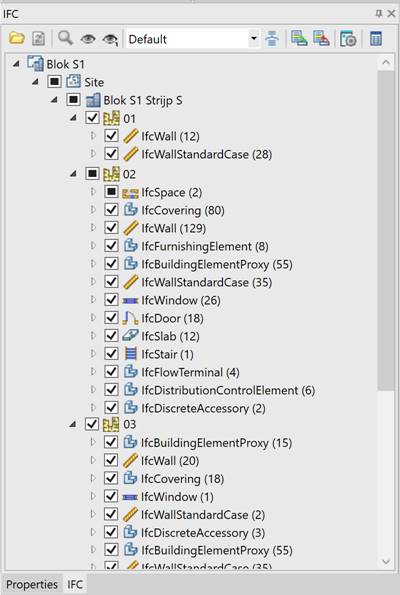
Model Import
1. Run the import command:
· The  Import button in the main menu of the IFC toolbar.
· The Import button in the tree of elements.
· Command line: IFCVIEW3D.
2. Select the IFC file and confirm the selection.
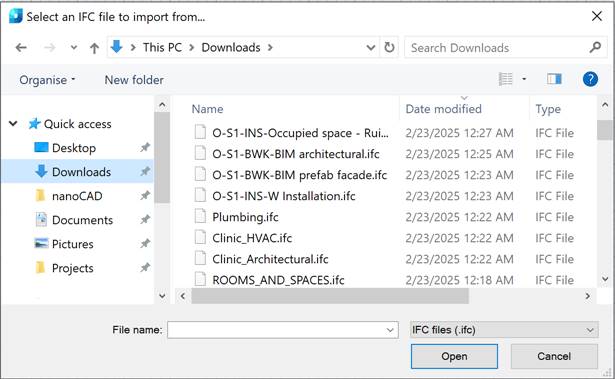
The file will be analyzed and imported into the nanoCAD environment. The loading time depends on the computer’s power and the file’s complexity.
3. After import, a tree of elements will be available, united into one project. Additional commands will become available. When importing several models sequentially, several projects will be displayed in the tree.
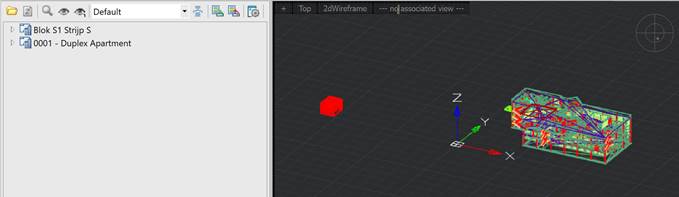
Main Menu of the Toolbar
Depending on the selected element in the tree, the following commands become available:
* Import – the command opens the dialog for selecting a file to import.
 Delete – the command deletes the selected element and all its descendants from the model.
 Update IFC – the command updates the model tree.
 *Drop*-down list for selecting a group.
 Grouping – the command opens the Grouping dialog to set up the grouping of objects in the element tree.
 Show/hide in model – the command controls the display of the selected element and all its descendants. You can also control the display using the switch to the left of the element name.
Show/hide only this – the command switches the display between the selected element and the elements of the same parent.
NOTE The commands of the element tree context menu duplicate the commands of the toolbar’s main menu.
Grouping
By default, elements in the tree are grouped in the following sequence: Project – Site – Building – BuildingStorey – Type – Name.
It is possible to select another grouping method (from the grouping selection list) or assign a user-defined one.
Standard groupings: Default, Type, BuildingStorey, Layer.
To view the composition of a grouping, select the required grouping and click the CAD software IFC Viewer 19 Grouping button. In the Grouping dialog, the fields will display the parameters of the selected grouping. To create a user-defined grouping, change the composition of the fields and click the OK button.
By default
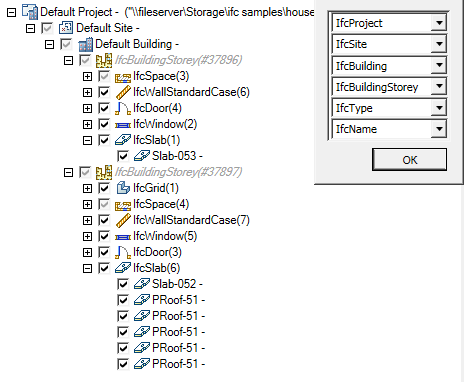
User-defined
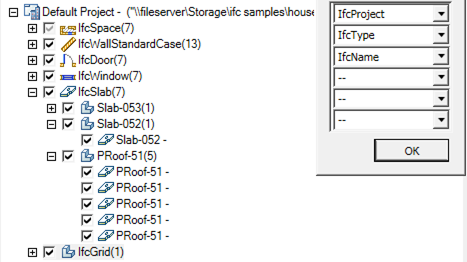
NOTE When creating a user-defined grouping, elements are additionally grouped by the title of the name. The title of the name is the text of the name from the first character to the first space (or end of line).
IFC Import Settings
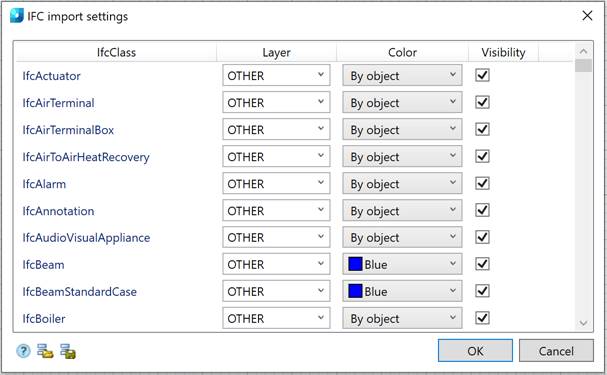
The settings dialog consists of the list and the import/export toolbar.
List
The list consists of a set of IFC classes. The class name is in the first column IfcClass. It is impossible to add a new class or delete it.
The Layer, Color, and Visibility columns are used for setting up.
Layer – the name of the layer on which the graphics of this class will be located.
Color – the color of the graphics.
Visibility – controls the display of graphics in the drawing.
Toolbar
Import settings – the command allows you to import settings from an XML file.
Export settings – the command allows you to export settings to an XML file.
Feedback

Post your comment on this topic.