


Collection Editor
Serves for quick creation of lists and their subsequent use in form controls and custom sorting in tables.
Dialog
The dialog is divided into two parts: Collection name and Collection members.
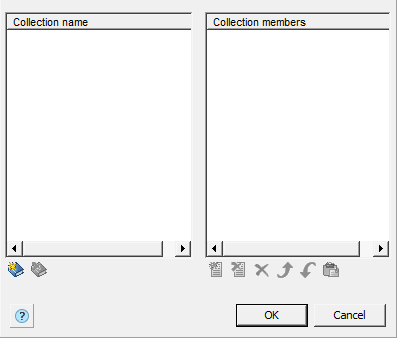
Collection management tools
Add new collection. Delete collection.Collection members management tools
Add new collection member.Delete collection member.
Delete all collection members.
Move collection member upper.
Move collection member down.
Paste from clipboard.
Create and assign a collection while editing a form
In order to create a collection you need to:
Click the “Data” option in the DB-Listbox or DB-combobox. A dialog box will appear.
In the list of collections, call the “Add new collection” command and enter a name for the collection.

Set the composition of the collection.
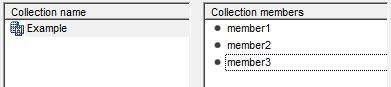
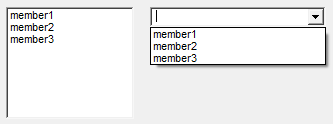
Select a collection and click “OK” in the Collection Editor dialog box.
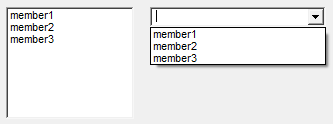
he created collection will look like this:
Creating custom filtering on a table
In order to create a collection you need to:
Go to Edit Table Dialog “Main Menu – Rows – Custom Sort…”.
In the list of collections, run the “Add new collection” command and enter a name for the collection.

Set the composition of the collection.


Click “OK” in the Collection Editor window.
Purpose of custom filtering in a table
In the “Row grouping and merging” dialog box add a “User Sort” rule.
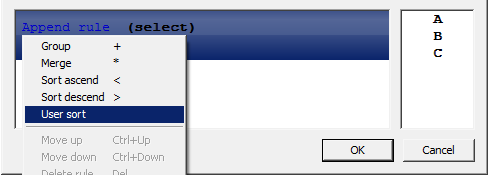
Select a collection and click “OK”.
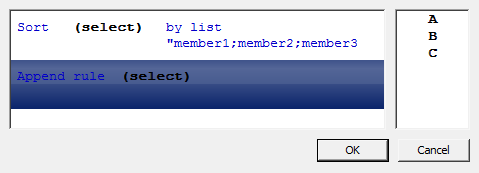
The custom sort created will look like this:
Important!
Collections are saved to the database, they can be used in other objects nanoCAD Construction .
Forms and tables have separate stores.
Collections created by editors or administrators are available to everyone and cannot be edited by the user (the collection editing buttons will be grayed out).
User-created collections are only accessible to the user.
Feedback

Post your comment on this topic.