


Technical parameters
 Main menu: Construction – Text >
  Technical parameters.
Ribbon: Construction – Symbols > Technical parameters.
Toolbar: “Text”> Technical parameters.
 Command line: SPTD.
Working with the technical description editor is similar to working with the TC editor. The main difference is that the typed text can be placed anywhere in the drawing.
Editor
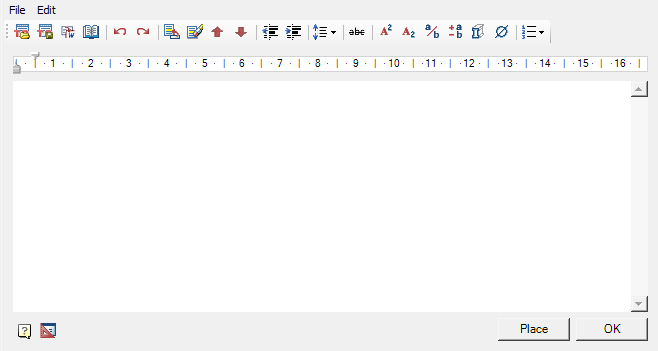
Main menu
File
- Clear – clear TP.
- Open file – the command opens the TP from a previously saved file.
- Save file – command saves TP to * .rtf file.
- Close without save – the command closes the TP editing dialog box without saving.
Edit - Undo – command cancels last action.
- Redo – the command repeats the previously canceled action.
- Insert title – command inserts a title in front of TP items.
- Delete title – command removes TP title.
Toolbar
Open file – the command opens the TP from a previously saved file.
Save file – command saves TP to * .rtf file.
Important! The special characters used in the editor are lost when they are transferred to an external file.
 Fill in MSWord – the command opens a new document in MSWord and inserts the text TP.
Important! The special characters used in the editor are lost when they are transferred to an external file.
 Notebook – command opens interface notebook.
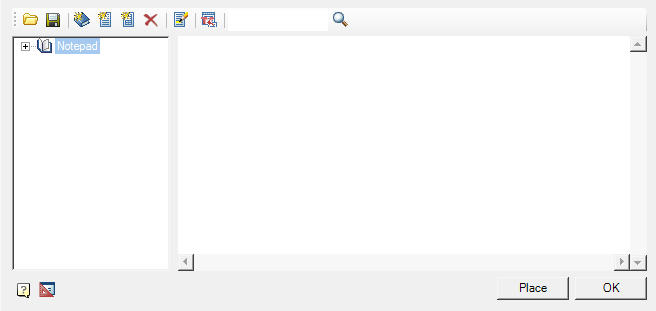
*Undo – command cancels last action.
- Redo – the command repeats the previously canceled action.
*Add paragraph (CTRL+ENTER) – command adds a new TP item.
*Delete paragraph (CTRL+DEL) – command deletes TP item.
*Replace paragraph up – the command moves the TP item at which the cursor is located, higher up in the list.
*Replace paragraph down – the command moves the TP item at which the cursor is located, down the list.
 Decrease Indent – the command reduces the indent of selected items.

Increase indent – command increases the indent of selected items.
Line Spacing – the command opens the list for setting the line spacing. Adjust line spacing of selected items.
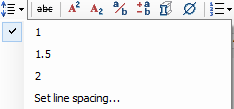
- 1 – set 1 leading (unit for measuring line spacing). Line spacing is added after the TP item.
- 1.5 – set 1.5 leading. Line spacing is added after the TP item.
- 2 – set 2 leading. Line spacing is added after the TP item.
- Set line spacing… – the command allows you to specify your own line spacing. Line spacing is added after the TP item.
- Superscript – translates the selected text into superscript.
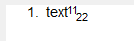
- Subscript – translates the selected portion of the text into a subscript.
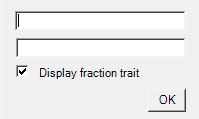
- Insert fraction – the command calls the “Fraction” dialog box in which the numerator and denominator are specified. The fraction is inserted into the text TP.
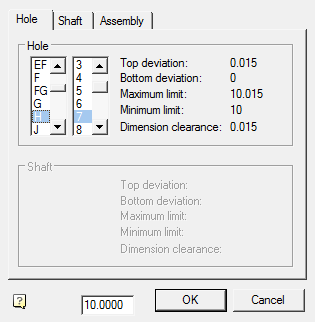
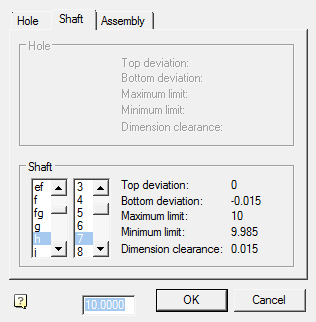
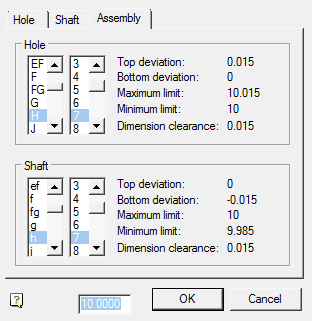
- Insert tolerance – provides the ability to insert a tolerance. When called, the “Tolerances” dialog box opens.
*Insert material – provides the ability to insert material. When called, opens the “Material” dialog.
*Insert spec symbol – allows you to insert special characters in the text TP.
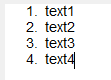
*Numeration – the command allows you to select the design option for TP items.

Note:
To create a hierarchical list it is necessary to press the “Tab” key on an empty item. A new child level has been created. To return to the previous level, press the “Enter” key on an empty item.
Ruler. The ruler is used to position the lines relative to the entire TP document. Sliders are used to position the lines.

1. The bottom slider adjusts the indentation of all lines of the paragraph except the first line.
2. The top slider adjusts the indentation of the first line of the paragraph.
Context menu
The context menu uses standard commands for text fields.
Setting text options
To set the TP text parameters (font height and slope, indent from the title block, eTP.) open the dialog box “Settings”.
Feedback

Post your comment on this topic.