


Material Editor
Material editor allows you to edit parameters of the material selected in the Materials Browser and open the Texture editor bar to edit texture.
 Double click on the material in the Materials Browser
Context menu of the material in the Materials Browser: Edit…
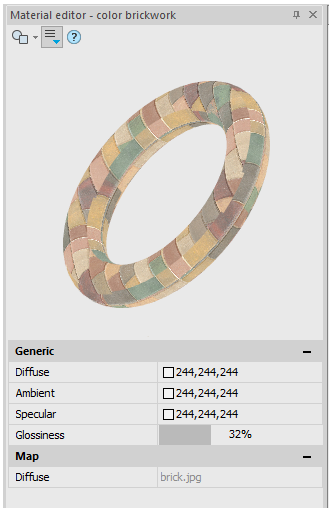
Options:
 |
Selection of 3D object in the preview window to evaluate the resulting material. The object can be zoomed in, removed and rotated using the mouse. |
|---|---|
 |
Hides or displays additional parameters of the material. |
| Diffuse | The color of the object’s illuminated part (diffuse color). If By object is selected, the diffuse color will be inherited from the object the material is applied to. |
| Ambient | The object’s color in the shadow area (ambient color), i.e. in the area not illuminated by direct rays. Usually, the ambient color is a very dark shade of the diffuse color. If By object is selected, the ambient color will be inherited from the object the material is applied to. |
| Specular | Specular color (specular color). If By object is selected, the specular color will be inherited from the object the material is applied to. |
| Glossiness | Size of specular on the object (shininess). |
| A7 | Applying texture on the object’s surface. When clicking  , the context menu opens to the right of the texture file , the context menu opens to the right of the texture file 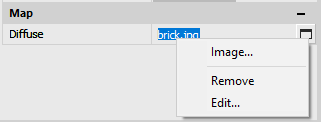
|
 |
The Texture editor allows you to adjust texture parameters for the material being edited: position it on the object’s surface, specify parameters for scaling, repetition, method of application on the object.
|
Feedback
Copyright © 2026 CSoft AS
—
Powered by 
Post your comment on this topic.