


Sample create label
Create a label for equipment.
1. Insert equipment

2. Add a note (eg, constructional note (spnotep))
3. The dialogue form editing notes to add the necessary fields to the drawing for this:
a) from the context menu of the field call the command “Pick from drawing”
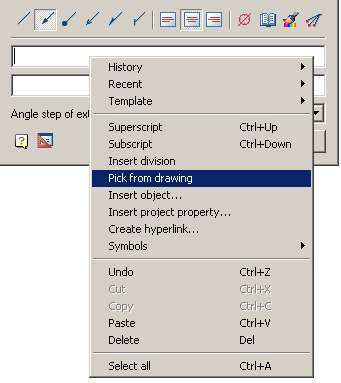
b)In the dialog box “Value picker” choose “Take from property”

c) Specify the equipment and in the dialog box, select the desired option
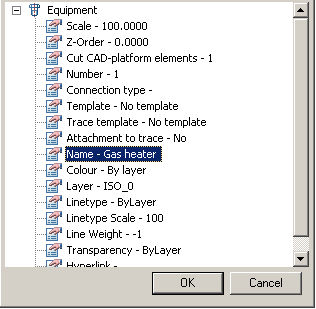
4. Confirm the settings notes and paste it to the drawing.
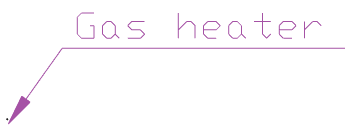
5. From the context menu, select notes “Save object as template”
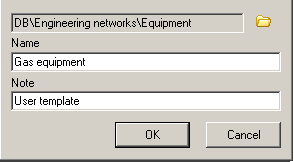
6. In the dialog box “Template Wizard”, click “Create template”
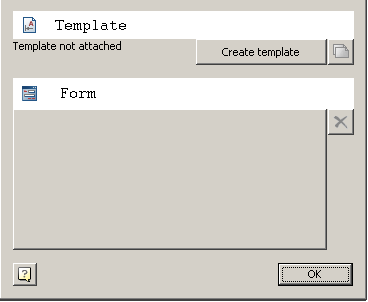
7. Save the template in the base element according to the settings.
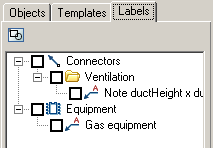
8. Now create a label will be available in the “Labels” in “Equipment”
Feedback
Copyright © 2026 CSoft AS
—
Powered by 
Post your comment on this topic.