


Set Parameter
 Main menu: Construction – Library objects – MechWizard >
  Set Parameter.
Ribbon: Construction – MechWizard > Set Parameter.
Toolbar: Set Parameter ( “MechWizard”).
 Command line: SPWIZPARAM.
Button Set parameter is used for setting targets sketch. Press the button and select the object (sketch element). This will bring up a dialog box, the form of which depends on which object was selected.
Setting size
When setting the size of the dialog box will look like:
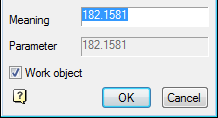
Enter a parameter expression to control the size. The parameter can be set by a variable name or expression that is allowed to use the number and names of the variables related to mathematical and logical functions.
Important! Object parameter names should not coincide with the names of the teams nanoCAD (for example, can not be assigned to the parameter name HATCH or LINE)
Expressions can be used the following functions:
arithmetic operators +, -, *, /
trigonometric functions sin(), cos(), tg() (the function argument is given in degrees)
inverse trigonometric functions asin(), acos(), atg()
taking the square root function sqrt()
exponentiation function^ (recording format: x ^ y – x raising y)
absolute value abs()
rounded to an integer value int().
Logical operations:
Min(x,y) – returns the minimum value of the argument;
Max(x,y) – returns the greatest value.
Iff (boolean, x, y) – returns the value of the argument x if the logical expression is true, or the value of y if the logical expression is false. Example of using the function, the result of which is similar to the function Min (x, y): Iff(x<y, x, y).
Valid logical conditions: >, <, == (equal), ! = (Not equal), > = (not less than), <= (not more).
Function within an expression can be nested.
Setting the graphic element
When you set a graphic element sketch (segment, circle arc, circle, spline or shading) dialog box will look like:
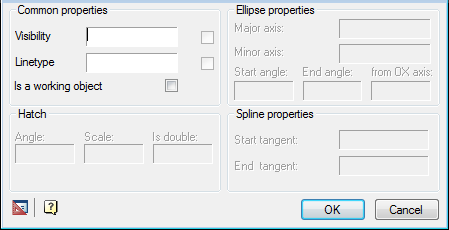
Work items are supporting the construction of a thumbnail and are not displayed when you insert a model from the database. Performance object can be any graphic sketch element: line, arc of a circle, etc.
Setting the insertion point
When setting the insertion point, a dialog box will look like:
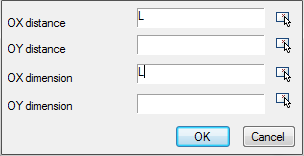
Distance along the axes OX and OY determines the position of the handle in the object. Distance can be set expression or numeric value.
Parameter on the x-axis and OX and OY is the name of the script variable whose value will change when stretching the handle.
Button specify parameter lets take a parameter or drawing away.
Enter additional values
In the sketch may include additional expressions for calculation of parameters. These expressions should be written a single line text entry format each line of text as follows:
X = EXPR
where X – the variable name;
EXPR – an expression that contains the names of variables, mathematical or logical functions.
Examples of additional rows of values:
a = b*2 – assigning the result of an arithmetic operation;
alpha = asin(b/c) – the use of trigonometric functions;
k = iff(a>b, 1, 0) – assign a value to the condition;
d = min(m1, 100) – the assignment of the smallest of the two values;
g10 = sin(alpha*2) + sqrt(b^2 – c^3) / min(sin(a), cos(b)) – nested functions.
Sequence computing additional rows values – from left to right and top to bottom. Additional values values recognizing parametric form must be selected along with other sketch entities.
Feedback

Post your comment on this topic.