


Saving a block in a separate file
 Ribbon: Insert – Block Definition >
  Write Block
 Command line: WBLOK, ACADWBLOCKDIALOG, W
The command allows you to save in a separate file:
- a whole drawing with all changes made;
- a block contained in a drawing;
- separate fragments of a drawing.
Starting the WBLOCK command opens the Write block dialog box:
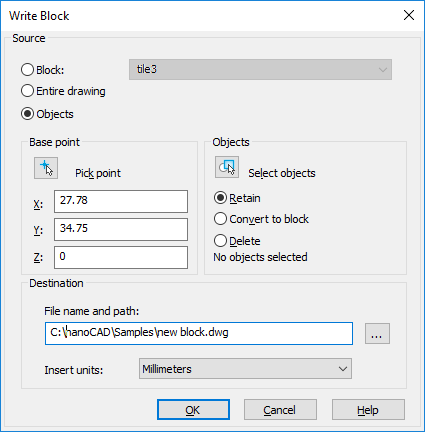
Options:
Source
| Block: | Turns on the mode for selecting from the drop-down list the block to be saved contained in the drawing. Pay attention: If there is not a single block in the drawing, the option is disabled. |
|---|---|
| Entire drawing | Turns on the mode for saving the entire drawing in a separate file. |
| Objects | Turns on the mode for saving objects selected in the current drawing in a separate file. |
Base point
 Pick point Pick point |
Button that temporary closes the dialog box so that you can specify the base point on the screen by the mouse cursor. |
|---|---|
| X: Y: Z: | Enters base point coordinates. |
Objects
 Select objects Select objects |
Button that temporary closes the dialog box so that you can select objects on the screen by the mouse cursor. |
|---|---|
| Retain | Turns on the mode for retaining the selected objects in the drawing after they are saved in a separate file. |
| Convert to block | Turns on the mode for creating a block reference in place of the selected objects after they are saved in a separate file. |
| Delete from drawing | Turns on the mode for deleting the selected objects from the drawing after they are saved in a separate file. |
| Objects selected: | Displays the information on the number of objects selected for saving. |
Destination
| File name and path: | Button  opens the Save Document dialog box to specify the path, name and format of file to be saved. opens the Save Document dialog box to specify the path, name and format of file to be saved. |
|---|---|
| Insert units | Drop-down list for selecting measurement units for the file being saved. |
Feedback
Copyright © 2026 CSoft AS
—
Powered by 
Post your comment on this topic.