


 This functionality is available only in the Raster module.
A raster image can be converted to color modes: TrueСolor (full color), Grayscale (half-toned), and to indexed colors.
Conversion operations can be applied to several images of the same type at the same time.
Converting monochrome images to grayscale, TrueСolor or indexed color models makes it possible to apply color filters to them (Blur, Adaptive blur, Contour Sharpness, Average).
Conversion to True Сolor (full color)
 Ribbon: Raster– Processing– Convert to 24 bits >
  Conversion to True Color
Menu: Raster – Processing the raster – Convert to –  True Color
 Command line: CONVERTTO24
1. Select images.
2. Perform the command..
Conversion to grayscale
Ribbon: Raster– Processing– Convert to 24 bits >  Convert to Grayscale
Menu: Raster – Processing the raster – Convert to –  Grayscale
Command line: CONVERTTOGRAYSCALE
1. Select images.
2. Perform the command.
Conversion to the indexed colors
Ribbon: Raster– Processing– Convert to 24 bits >  Convert to 256 Colors
Menu: Raster – Processing the raster – Convert to –  Convert to Indexed colors
Command line: CONVERTTO256COLORS
The command allows you to reduce the image file size by changing the color depth. The command also provides the ability to fine-tune the colors. As a result of its application to an image represented by the True color model, the number of colors used is reduced to 256 (or less). You can further reduce the number of colors by deleting selected colors or merging several colors into one. You can replace selected colors and add them to the palette.
1. Select the images to be converted.
2. Run the command.
The Convert to indexed colors dialogue has a preview window, a table of current colors and editing tools.
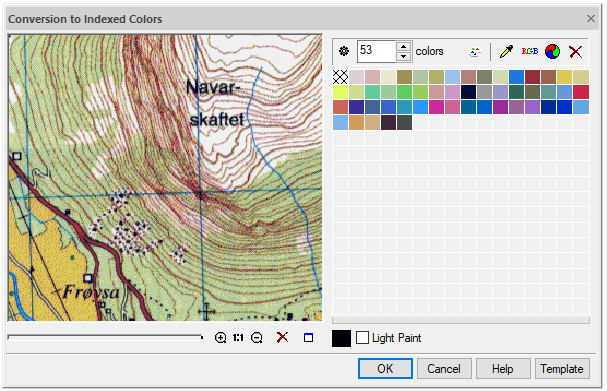
Convert automatically
To obtain an image with the maximum possible number of colors, enter the value 256 (suggested by default) in the color field and click  Reset palette button.
To automatically reduce the number of colors in the selected image, click  Set auto palette button.
If the results are satisfactory, click OK in the preview window
Setting the number of colors in the palette
Set the desired value in the color counter ,  click Reset palette button. The palette will be automatically rearranged in order to display the image in the best possible way in the colors, the number of which is set in the counter.
Removing a color from the palette
1. Select the color(s) to be removed from the table. Multiple colors are selected while holding down the SHIFT key.
2. Click  Delete selected colors button. The image will be redrawn in a new palette.
Adding a color to the palette or replacing one color with another
1. Select a color in the table to be replaced, or point to an empty square if you want to add a color.
2. Click  Get color to set button and specify the required color to be added or replaced in the dialog box.
 Choose color to change palette button, specify the point on the raster image.
Combining multiple colors into one
1. Select multiple colors in the table while holding down the SHIFT key.
2. Click  Merge colors button. The selected colors will be reduced to one of the colors existing in the palette, which is as close as possible to the average value of all selected ones.
Changes are controlled in the preview window.
Click OK to apply changes to the image.
Info: NanoCAD is a simple, affordable, and yet professional, CAD freeware tool for Windows, that delivers an outstanding user experience by providing high performance, full capability, a classic interface and native.dwg format support. nanoCAD has been built to deliver design and project documentation for all industrial purposes. nanoCAD includes a full suite of basic and advanced CAD tools for 2D/3D design and creating industry-standard DWG-compatible CAD files. Our program supports innovative, collaborative and customizable features to raise your efficiency, and includes a few API’s, allowing anything from routine task automation to complex CAD software development. You may try nanoCad for free, using the links below, and purchase later, in case you like it.
Feedback

Post your comment on this topic.