


Creating a Coordinate System
 Ribbon: Topoplan – Settings >
  Creating a Coordinate System
Menu: Topoplan – Settings > Creating a Coordinate System
Toolbar: Topoplan Settings > Creating a Coordinate System
 Comamnd line: NG_NEW_CRS
Creating a custom coordinate system manually or by importing a PROJ file. The command is designed to set a custom coordinate system and then save it in the database.
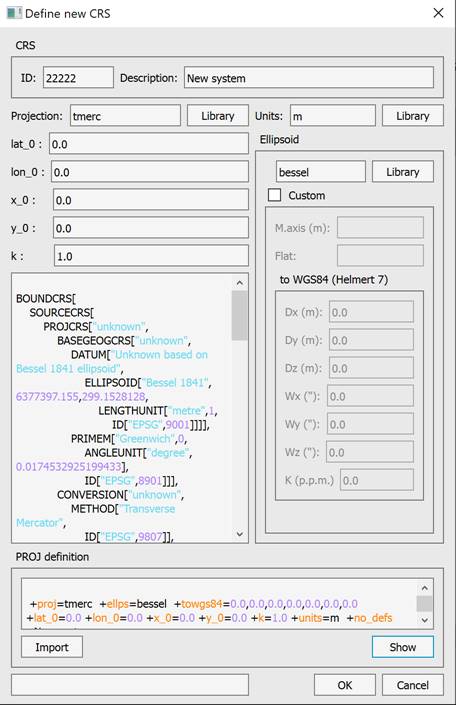
There are two ways to create a custom coordinate system.
1. Filling in the dialog fields.
The principle of transformations consists of transforming the source coordinate system to the reference ellipsoid and then transforming it to the WGS84 ellipsoid. This procedure is performed in two stages.
The first stage consists of transforming coordinates from the local system to the standard cartographic projection on which it is based and then to the reference ellipsoid. The fields to fill in are in the left part of the dialog.
The second stage is transforming to WGS84. For this, the Helmert semi-parameter transformation is used. The data is entered into the corresponding fields in the right part of the dialog.
The specified values are transformed to the PROJ library command line standard with a check for data correctness. This eliminates the possibility of erroneous transformations getting into the database. The file with custom coordinate systems is located C:\Users\User_name\AppData\Roaming\Nanosoft AS\nanoCAD x64 25.0\imppointslib\geoids\other.extra. 25.0\imppointslib\geoids\other.extra.
2. Import from file.
System parameters can be imported from .prj files
These files contain strings in WKT format:
PROJCS[“unknown”,
GEOGCS[“GCS_unknown”, DATUM[“D_Unknown_based_on_Bessel_1841_ellipsoid”, SPHEROID[“Bessel_1841”,6377397.155,299.1528128]], PRIMEM[“Greenwich”,0.0], UNIT[“Degree”,0.0174532925199433]], PROJECTION[“Transverse_Mercator”], PARAMETER[“False_Easting”,0.0], PARAMETER[“False_Northing”,0.0], PARAMETER[“Central_Meridian”,37.5], PARAMETER[“Scale_Factor”,1.0], PARAMETER[“Latitude_Of_Origin”,55.6666666666667], UNIT[“Meter”,1.0]]As a result of entering data into the coordinate system, it will appear in the nanoCAD database.
Feedback

Post your comment on this topic.