


 Ribbon: Topoplan – Utilities >
  Point Conversion
Menu: Topoplan – Utilities>  Point Conversion
Toolbar: Topoplan Utilities > Point Conversion
 Command line: NG_CONVERT_POINTS
The command converts point objects: points to geopoints and blocks, blocks to points and geopoints, geopoints to points and blocks.
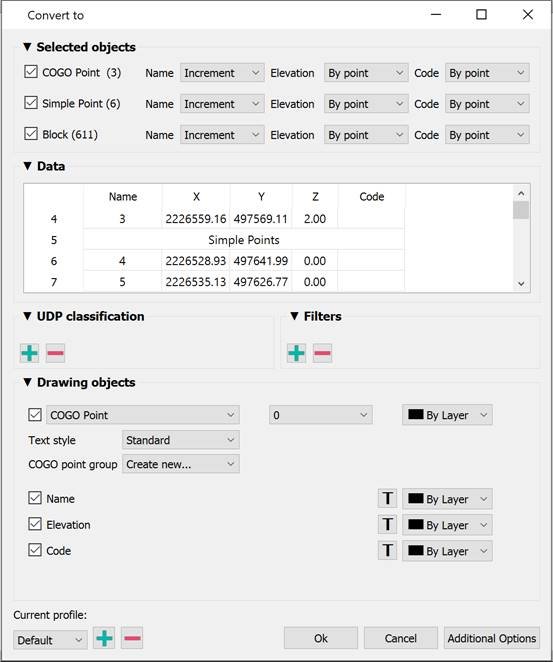
Options:
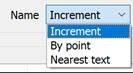
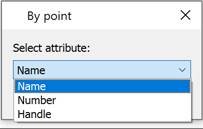
| Selected objects | The section defines which types of point objects selected in the drawing should be converted to another type and where to get values for mark labels. You can convert geodata simultaneously from all or selectively from the following types of point objects:
|
|---|---|
| Data | The table typifies and edits the data obtained from point objects: point coordinates by X, Y and Z, numbers, descriptions of points. The column heading displays the data type. In case of incorrect initial data typing, you can drag one header to another, thereby mutually changing them.  You can delete selected cells, rows, or columns. Multiple selection is supported using SHIFT and CTRL. Rows or columns are selected by clicking on the heading. Before manually deleting data, it is recommended to filter it out using filters. You can also edit the data after double-clicking on a cell.  |
| UPD classification | You can add custom properties to points with the  button. You should specify the type (integer, float, or string) and name. button. You should specify the type (integer, float, or string) and name.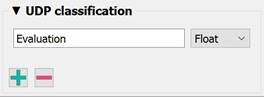 A new empty column with the name of the custom parameter appears in the Data table. Drag this column heading onto the heading of the column you want it to match.   |
| Filters | You can exclude data from conversion not only manually by deleting cells from the Data table, but also by setting filters. For example, you can exclude from the conversion all points with heights below 52 (column Z) and with a number greater than 350 (Name column). After adding the filter with  button, in the drop-down list, select the column by which all converted data will be filtered. Then set the value the column data should satisfy. The rest of the lines will be excluded from conversion. Hovering over a filter displays a tooltip with sample values. button, in the drop-down list, select the column by which all converted data will be filtered. Then set the value the column data should satisfy. The rest of the lines will be excluded from conversion. Hovering over a filter displays a tooltip with sample values. It is recommended to set filters only after correct data typing in the Data section. |
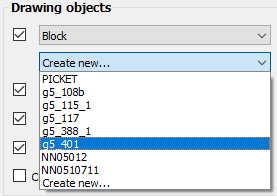
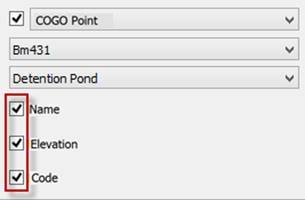
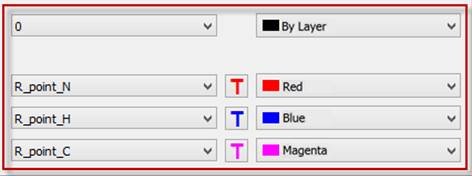
| Drawing objects | The section determines what type of objects the received drawing point data should be converted into. And also what signatures the point label will consist of, and what design they will have. You can import geodata in the form of:
|
| Current profile | Allows you to save all the settings made in the dialog to a profile for later use. |
| Additional options | The Additional Options button opens a window where you can change settings for the units (UNITS) with which geopoints should be imported. By default, the current drawing units are used. |

Feedback
Copyright © 2026 CSoft AS
—
Powered by 
Post your comment on this topic.