


Quick selection of object
Using the Quick selection command you can select objects using specified conditions.
 Ribbon: Home – Utilities >
  Quick Selection
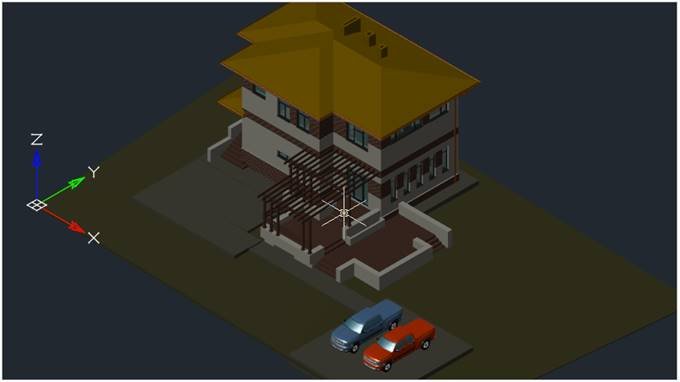 Menu: *Edit – Quick Selection*…
 Command line: QS
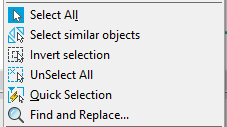
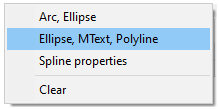
The Quick Selection command can be launched from the context menu:
In the Quick Selection dialog box, you can adjust the search conditions:
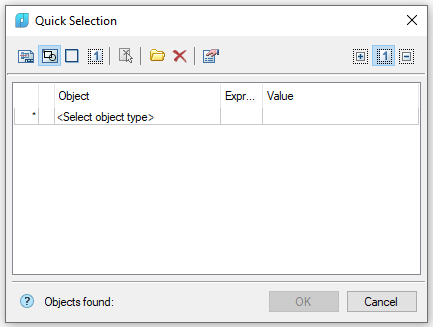
Parameters:
Search
There are selection areas in the status bar:

Search options:
 In the whole document – search in the whole document.
 In the current space – search in the current space.
 In bounding box – search in the selected rectangular area in the drawing.
 In current selection – search among selected objects in the drawing.
If In bounding box or In current selection is selected, the Quick Selection dialog box temporarily closes to allow the rectangular area to be specified on the screen or for objects to be selected . TheCAD drafting Quick selection of objects 12Set selection button becomes available after the area is specified or the objects are selected; using this button you can select a new rectangular area or change the current set of objects.
 Selection parameters. Include frozen and invisible layers – allows to search objects on frozen and invisible layers
The following methods are available:
Result set to new selection – Objects corresponding to the specified search conditions are selected in the drawing, other objects are deselected.
 Result add to selection – Found objects will be added to the selected objects on the drawing.
 Result subtract from selection – If objects were selected, they become deselected.
Filter templates:

The button to call template managing functions and the list of saved templates.

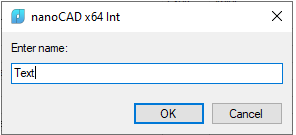
Save preset
Saves the preset selection conditions as a named template.
Remove preset
Removes a preset selected in the list.
 Reset conditions
Using a set of tools you can select objects using set and saved conditions.
 QS parameters
Switches on/off selection at frozen and invisible layers.
To add a condition for object search:
1. Click in the field and choose the required object type from the list:

To reject the selection, click on None.
2. There is a list of parameters of all objects belonging to this type and to the specified selection area:
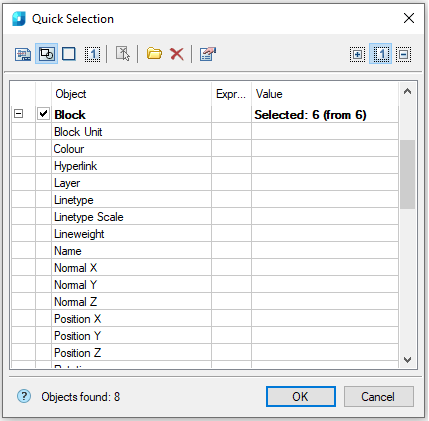
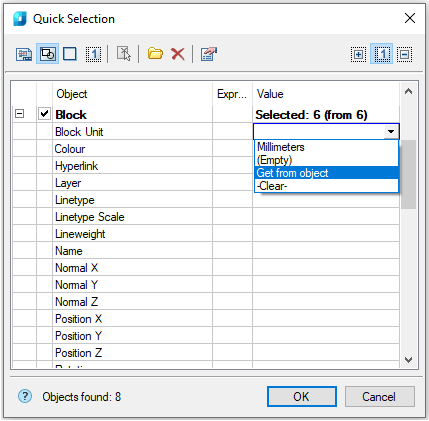
3. Select the value of the required search parameter in the Value column:
4. Select a logic search condition in the ExprType column:
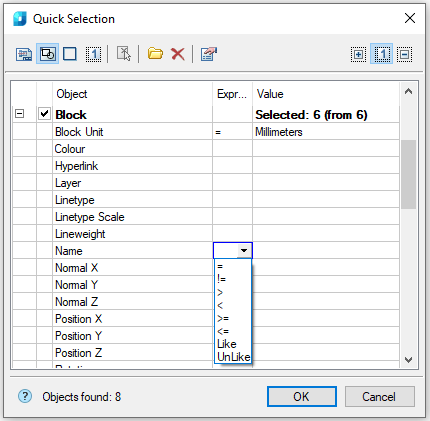
Available logic conditions for search:
| = | != | < | > | >= | <= | Like | Unlike |
| equals | does not equal | less | more | not less | not more | Search of substring. Searches for objects whose parameter value contains the substring specified in the ExprType column. | Search of substring. Searches for objects whose parameter value does not contain the substring specified in the ExprType column. |
NOTE: For every object type you can set numerous search conditions using one or several parameters.
5. To add another type of object, click on the bottom field:
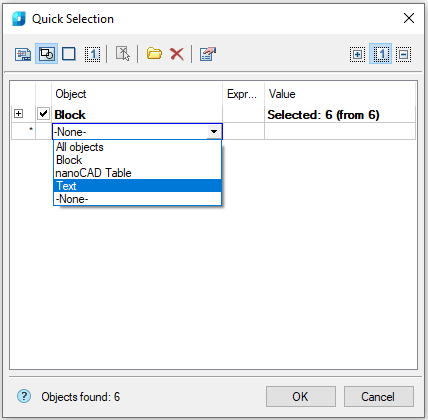
The number of objects satisfying the search conditions is displayed in the bottom part of the dialog box: Object found: 9.
“Quick select” Functional Bar
Quick select functional bar is implemented for more convenient work.
Menu: View – Toolbars > Functional > Selection
Selection bar functions like Quick selection dialog box.

Info: NanoCAD is an easy-to-use, inexpensive, and yet professional, CAD app for PC, that delivers a great user experience by providing high performance, full capability, a classic interface and native.dwg format support. nanoCAD has been built to deliver design and project documentation for all industrial purposes. nanoCAD includes a full suite of basic and advanced CAD tools for 2D/3D design and creating industry-standard DWG-compatible CAD files. Our software supports innovative, collaborative and customizable features to boost your efficiency, and includes a number of API’s, allowing anything from routine task automation to complex CAD app development. You may try nanoCad for free, using the links below, and buy later, if you like it.
Feedback

Post your comment on this topic.