


Chamfer
 Main menu: Construction – Utilities >
  Chamfer.
Ribbon: Construction – Utilities > Chamfer.
Toolbar: Chamfer (on toolbar “Utilities”).
 Command line: SPCHAMFER.
Command Options
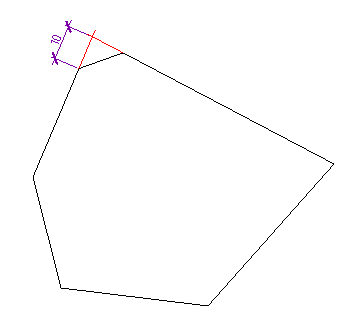
This command is used for automatic and semi-automatic placement of face on the details with the various versions and with the possibility of automatic dimensioning.
After clicking the command, it opens a dialog box settings Circle:
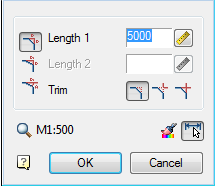
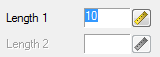
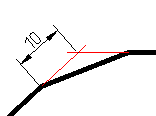
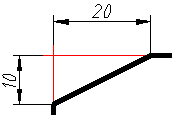
 Mode chamfering parts with two different sizes
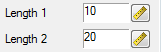
Mode chamfering parts with two different sizes
Mode Chamfer length and angle in this mode instead of the length 2 displays the setting angle.
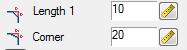
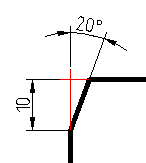
Mode full cutting contour lines
Mode partial cutting lines to their intersection
Mode without cutting
 2 Pick from drawing
Double click the left mouse button or click the right mouse button in the input fields of values, context menu will open with a list of the last entry:
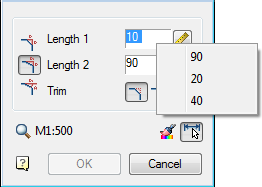
When a command from the context menu, the following options:
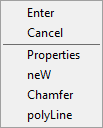
Propertise – Opening the dialogue to change the chamfer chamfer.
New – Completion of a group of facets and the beginning of another. This command is used when you need to, for example, several facets of the same size on the same site, and then with the same dimensions – on the other:
Fillet – Switch to build pairings. After you select the shortcut menu command opens this dialog Pairing parameter setting interface.
Polyline – Switching to chamfering along the selected polyline. This option is available if you have selected the type of symmetric Circle: one length or two identical length. In operation, the cut-off modes are ignored and dimensioning.
Features of the command
The command works in 3D. To execute the command source primitives must lie in one plane.
If you select the second object, press and hold SHIFT, then the angle will be formed (at the intersection of the closure and isolation).
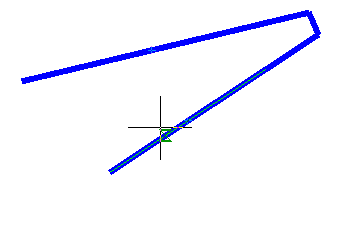
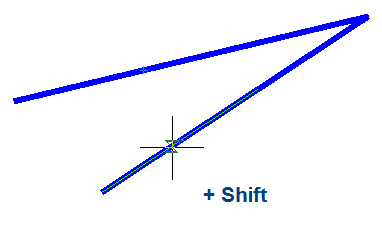
When you insert a polyline retains its integrity.
If the team is formed of two polylines one, it will be object to a single polyline.
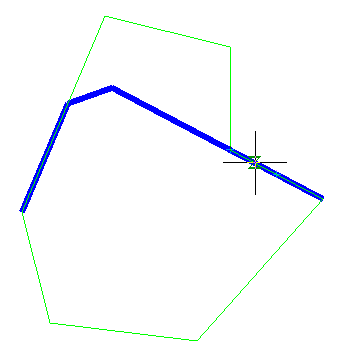
If you select one polyline segments separated by other sites, all the intermediate portions are removed.
Feedback

Post your comment on this topic.