


Plotter Settings
Plotter Settings
The Printer/Plotter section of the Page Setup and Plot dialogs contains a list of all plotting devices registered in the system. Their parameters can be edited by clicking the Setup button to the right of the list.

The type of dialog box that opens and the settings parameters are determined by the driver of the current plotting device.
Internal Plotters
nanoCAD has the ability to convert and output drawings using internal printers into files of the following formats:
· DWFx (Internal DWFx Plotter),
· DWF (Internal DWF Plotter),
· EMF (Internal EMF Plotter),
· PDF (Internal PDF Plotter),
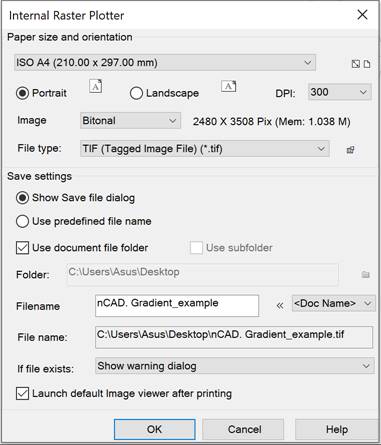
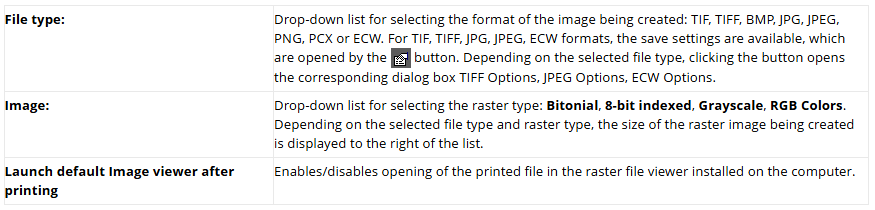
· TIF, TIFF, BMP, JPG, JPEG, PNG, PCX, ECW (Internal Raster Plotter).
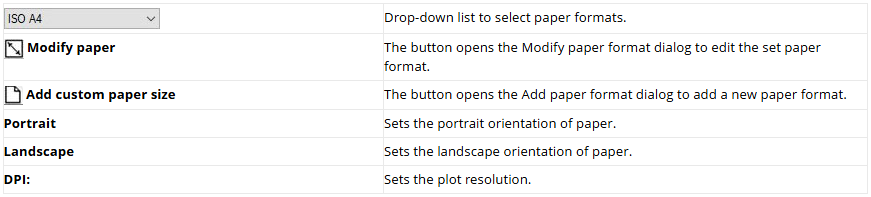
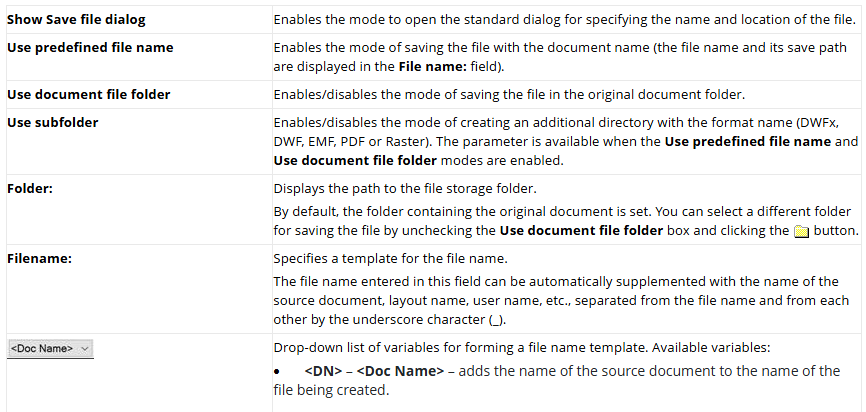
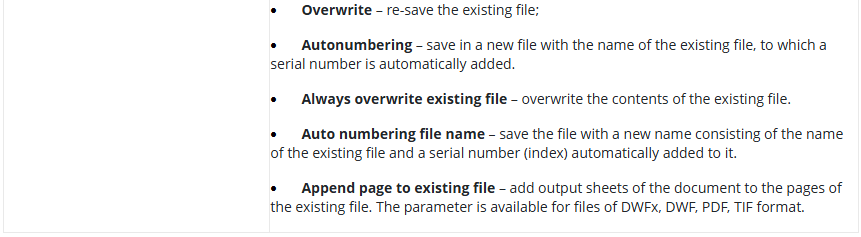
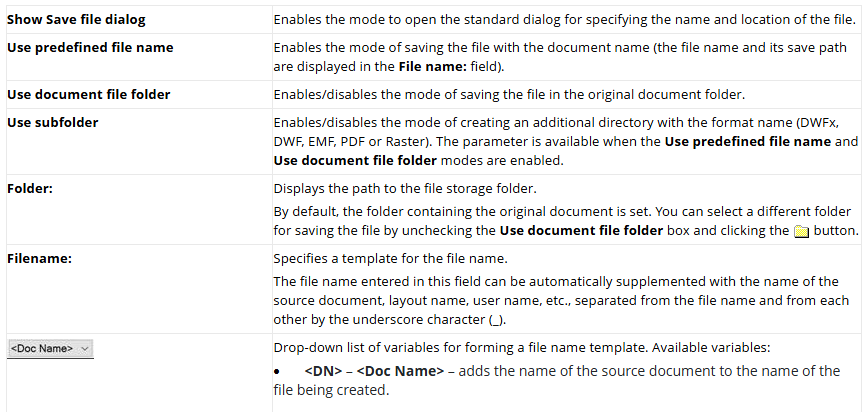
For internal plotters, the settings dialog has the following general parameters:
Paper size and orientation
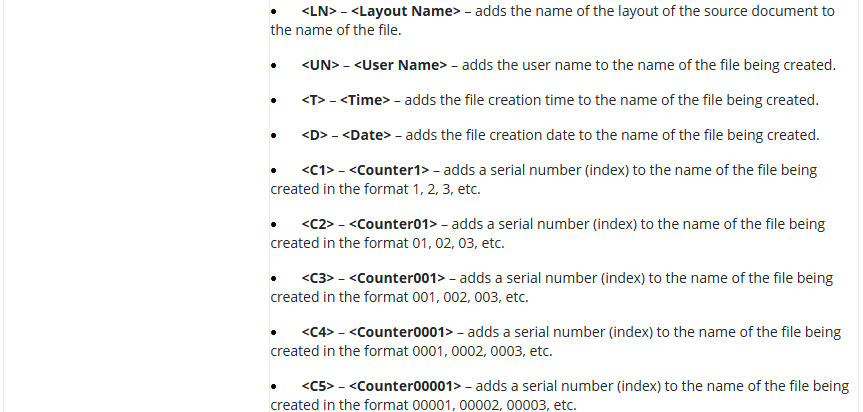
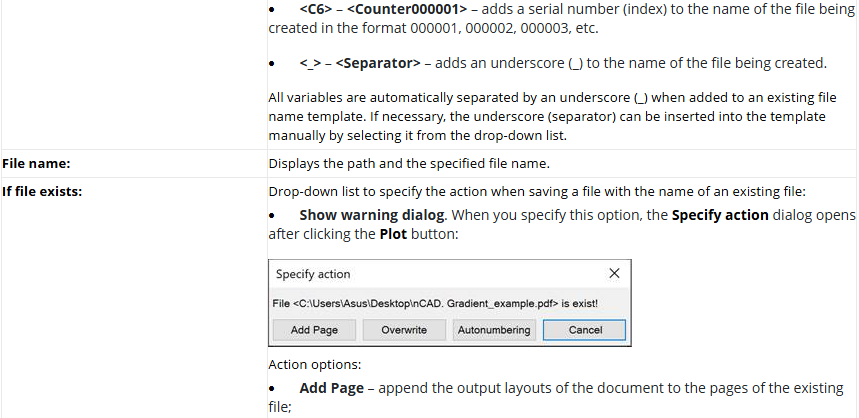
Save settings
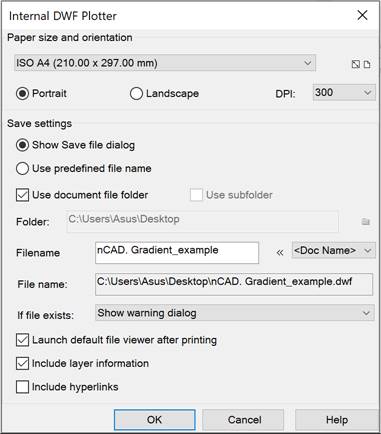
Internal DWFx Plotter, Internal DWF Plotter
Additional save settings:

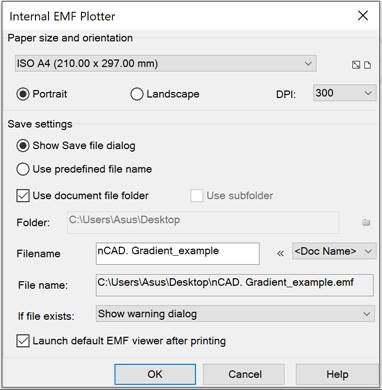
Internal EMF Plotter
Additional save settings:
Launch default EMF view after printing!Enables/disables opening of a printed file in the EMF file viewer installed on your computer.
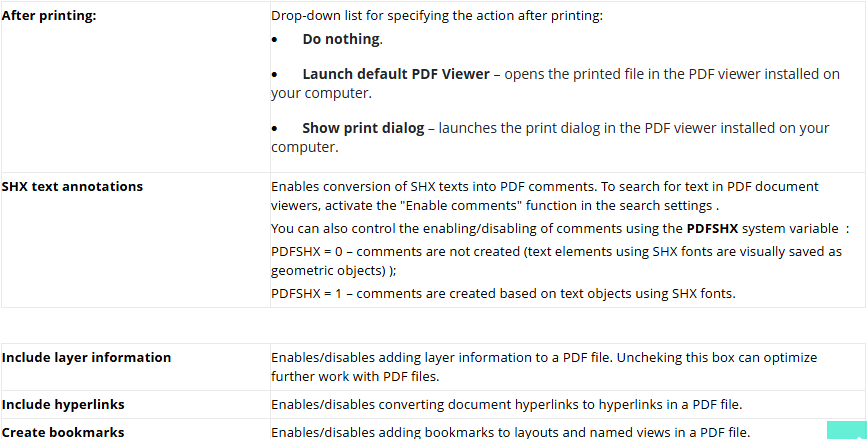
Internal PDF Plotter
Additional save settings:
Internal raster plotter
Additional save settings:
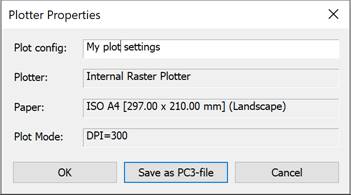
Saving Plotter Settings to PC3 File
When you finish changing the settings, when you close the dialog, you will be prompted to save the settings as a separate file with the PC3 extension so that you can reuse it.
For internal printers, the following settings are not saved:
· SHXtext annotations, since enabling/disabling comments can also be controlled using PDFSHX system variable,
· Afterprinting action is always set to open in a file viewer.
After this, the saved configuration can be selected in the list of plotters.
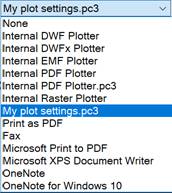
File with PC3 extension is saved in the print configuration files C:\Users\User_name\AppData\Roaming\Nanosoft AS\nanoCAD x64 25.0\PlotConfigs. You can change the location in the Standard Directories of the Options dialog.
Such printer device configurations can be transferred to different computers and shared among workgroup members, provided that the same driver version and plotter device model are used. If the plotter driver version is updated, the previous PC3 file may not work. Plot configurations for system plotters can also be shared, but should be in the same version of the operating system.
Feedback

Post your comment on this topic.