


Interface Expression Editor
The Formula Editor (Expression Builder) allows you to set parameters, arithmetic expressions, and object property references for a selected table cell.
The formula editor is invoked:
By clicking on the “fx” button in the formula bar;
By pressing Shift + F2;
Right-click upward;
From the context menu command “Expression ..”.
Dialog
The dialog box consists of the “Expression Input Field”, “Formula Templates”, “List of Registered Functions”, “Quick View Fields” and the “Attach object” button.
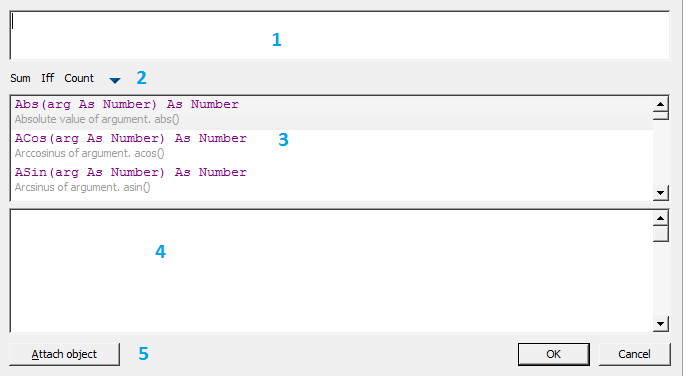
The “Attach Object” button allows you to attach to objects.
At the top of the dialog there is an expression input field, with which you can manually enter any arithmetic expressions, as well as use reserved variables and object properties.
When entering manually, a list of functions and variables containing the word being entered appears in the list of reserved functions; syntax is also checked. If the formula is incorrect, an error warning or hint will appear in the Quick View.
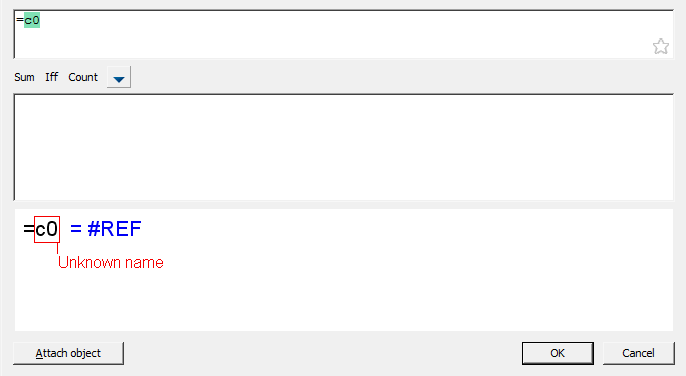
In the quick view field, by clicking the mouse on an expression, the text in the input field related to this expression is selected.
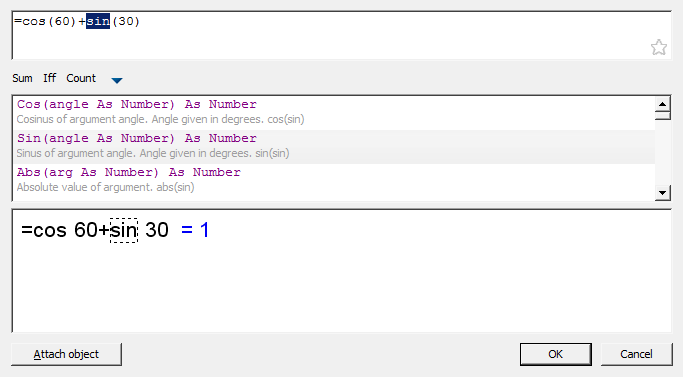
When you click on the  button in the “Expression input field”, the entered expression is saved on the formula templates panel for quick recall. Pressing the button again removes the expression from the formula template.
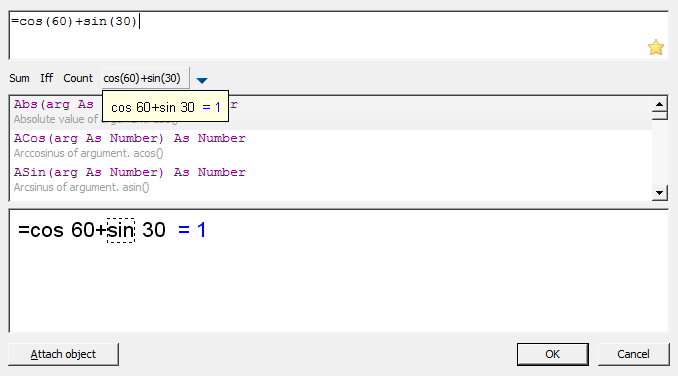
The “Reserved Functions List” contains recently used expressions that are highlighted in yellow. When you click on the button, expressions are saved in the Formula Templates panel for quick recall. Expressions that are in the Formula Template Bar in the Reserved Functions list will be marked with an asterisk. Pressing the button again removes the expression from the formula template.
When you hover the cursor over the button of the saved template, a tooltip will appear with the contents of this template.
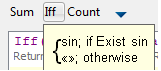
In order to insert an expression from the “Formula template”, place the cursor in the required position, press the button with the template.
To delete an expression template, click the triangle button and uncheck the required template in the list that appears.
Feedback

Post your comment on this topic.