


Grouping and merging the cells
Button  Grouping and merging. Report template
In the Grouping and merging dialog you can specify settings for grouping and merging table cells. Grouping and merging are only applied to cells in the report template.
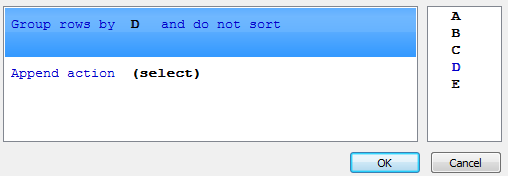
Study the example for how to merge cells.
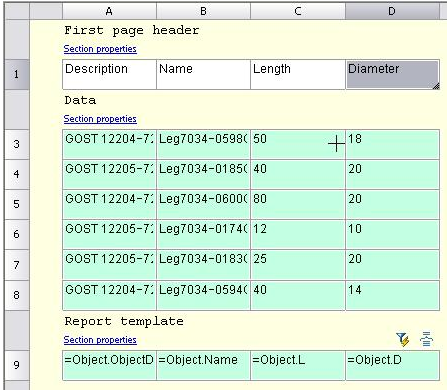
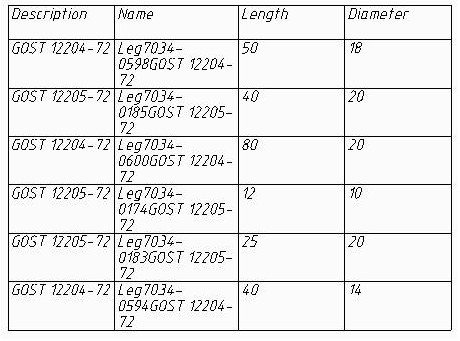
Merging
In the Grouping and merging dialog box select Append rule and select Merge.
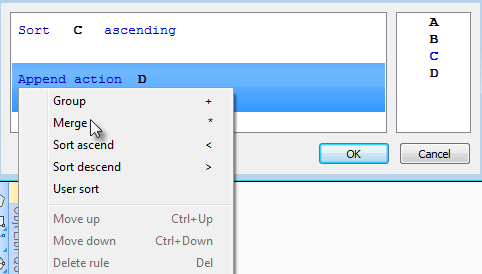
Select the column name for the cells you want to merge. Selection is made by double clicking on the column name or by dragging it into the Select field.
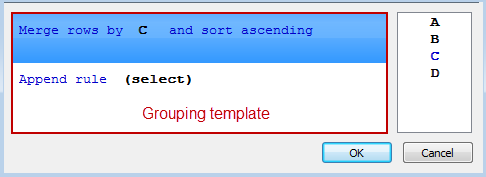
Note: To select another column, you must drag it into the column list and then select it.You can select several columns then place them in the required order.
The columns are processed according to the rules of the grouping remplate.
If you want to sort, select and don’t sortand sorting, and select sort type.
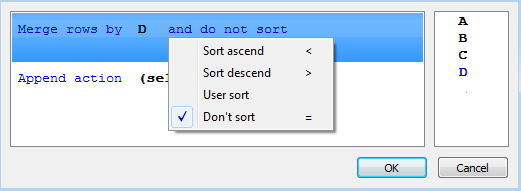
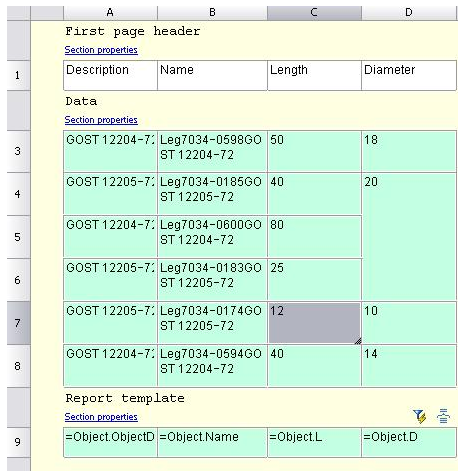
Click OK to check the result in the table editor. Cells having identical values in the D column will be merged.

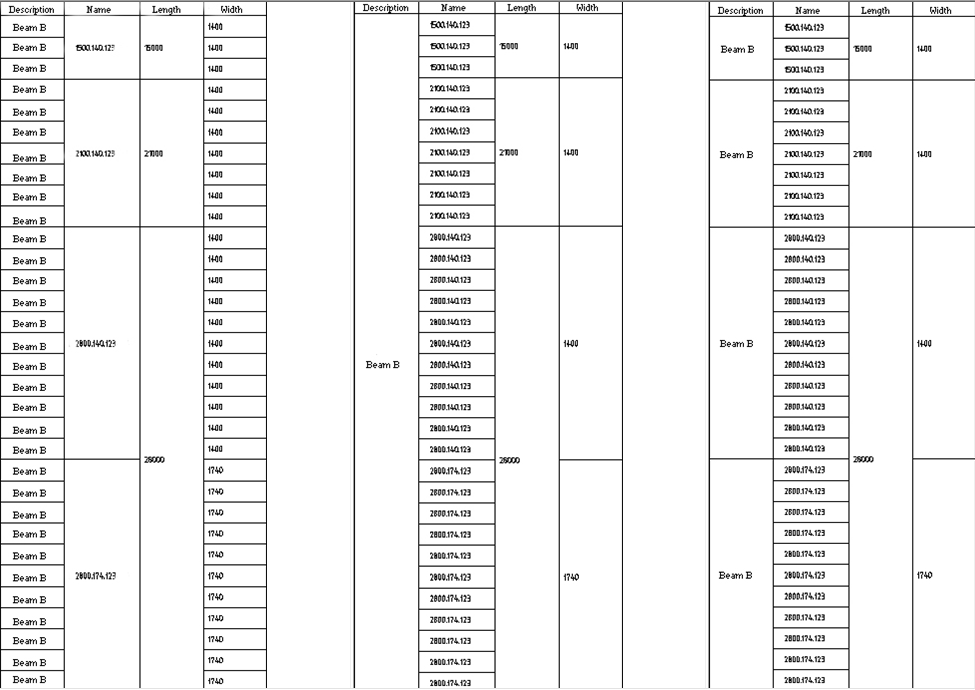
Grouping
In the dialog box groupings and click Add Rule select Group.
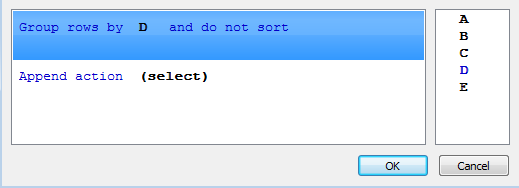
Select the name of the column whose cells you want to group. Choice is either by double-clicking on the column name, or by dragging it into the Select .
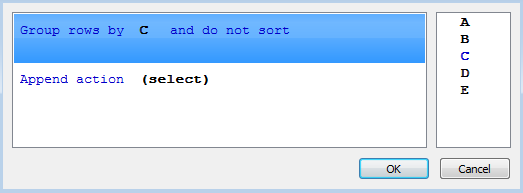
If you want to sort, click on the link and sorting, and select the type of sort.
Click OK to view the results in the table editor. Table rows that contain the same values ??in column C, will be grouped.
Feedback

Post your comment on this topic.