


Contruction Module: Chain note
 Main menu: Draw – Notes >
  Chain note.
Main menu: Construction – Notes > Chain note.
Ribbon: Annotate – Leaders > Chain note.
Ribbon: Construction – Symbols > Chain note.
Toolbar: Notes > Chain note.
 Command line: SPNOTEH, NOTEH.
A chain note has several coaxial (collinear) series-connected pointers.
If the first node of the note is placed on a line segment, then the note will be located perpendicular to this segment.
Procedure
Call the command.
If the option “Show dialog before inserting objects” is active, the “Chain note” dialog opens. In the “Chain note” dialog box, enter text and define the note options. Click “OK”.
Specify note nodes, at least two. To complete the selection of nodes, press “Enter”.
Specify the position of the leader where the text will go.
If the “Show dialog before inserting objects” option is disabled, the “Chain note” dialog will open.In the “Chain note” dialog box, enter text and define the note options. Click “OK”.
Note will be build.
Menu
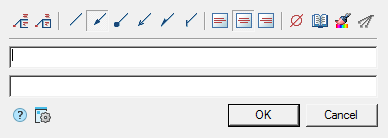
Multi-line text – the switch controls the display of multi-line text on the shelf;
Frame – text under the shelf is framed;
Type arrows:
- None,
- Arrow,
- Point,
- Open arrow,
- Half-arrow,
Oblique;
Align text horizontally; - By left edge
- By center
- By right edge
Insert special symbol – the command allows you to insert a special character into the input field;
Notebook – the command allows you to insert data from a notebook into the field;
Match properties – command copies appearance parameters from another object;
Add extension line – the command allows you to add an additional note line;
Global options – note settings;
Context menu
The context menu opens in the input field. View Context menu entry fields.
Fields
Chain note contains two lines of input by default.
The first line is for the label above the leader shelf, the second is under the leader shelf.
Input fields are expandable. Switching to another line of the input field is performed by the “Ctrl + Enter” key combination.
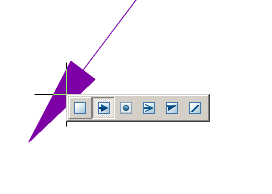
Arrow type selection context menu
When you call the context menu on the note arrow (without selecting the note), a dialog box for selecting the arrow type will appear.
Feedback

Post your comment on this topic.